Date Field Functionality
Date fields have a slightly different look and navigation depending on if they are optional or required.
Is the date field optional or required?
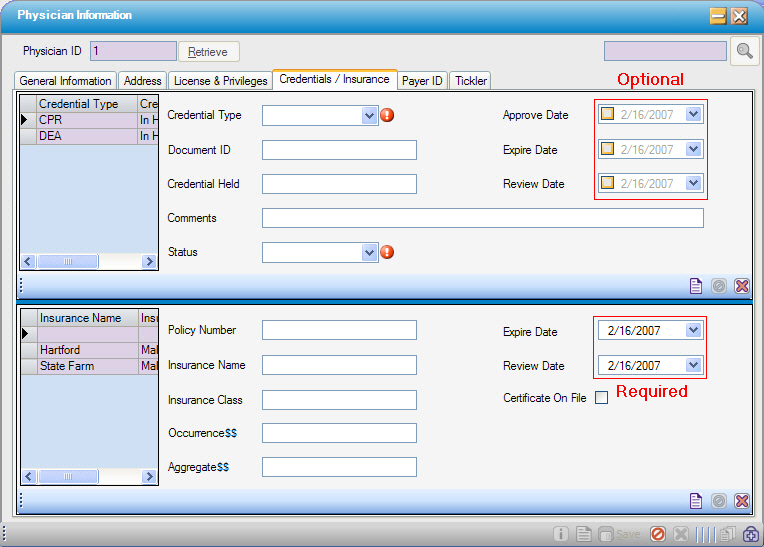
The graphic below shows the difference between optional and required date fields:
Optional date fields have a check box to the left of the date within the field
Required date fields do not
The same is true when a date appears in a grid.
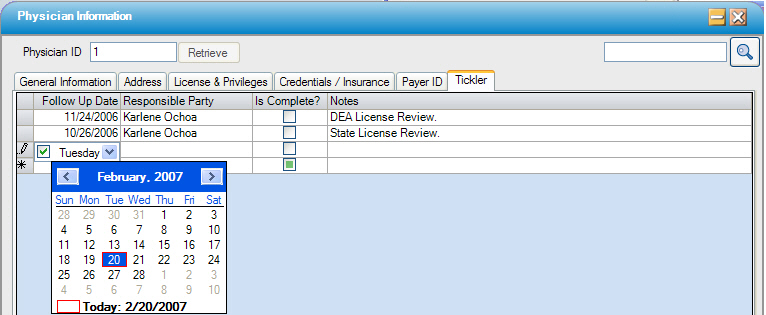
The date field (shown below) is optional, as indicated by the check box in the Follow Up Date field.
Date field navigation
Not in a grid
Date fields may be used with the keyboard and/or mouse.
Using the keyboard:
Use the <Tab> key to move into the date field.
Optional 
1. Press <Space Bar> to check the box to enable data entry.
2. Move right with the arrow key.
3. Enter day
4. Move right with the arrow key
5. Enter the month
6. Move right with the arrow key
7. Enter the year
8. Press <Tab> to move out of the field
Required 
1. Enter day
2. Move right with the arrow key
3. Enter the month
4. Move right with the arrow key
5. Enter the year
6. Press <Tab> to move out of the field
Using the mouse:
For optional fields, click the check box to activate.
For both optional and required fields, click the down arrow to invoke the calendar, then select the desired date. Click the right and left arrow keys to move from month to month.
In a grid
The date fields within a grid look different as the day and month names are used, but the functionality is the same.
