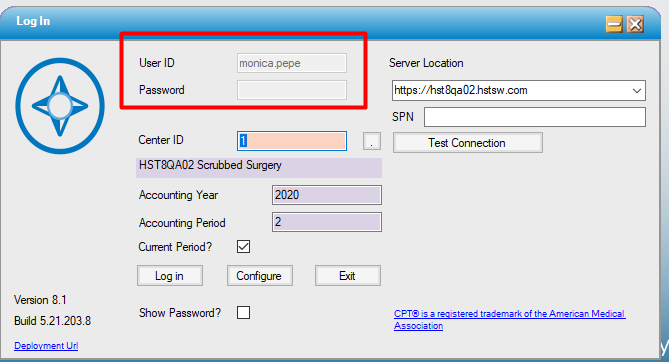
Single Sign On
Single Sign On (SSO) configuration settings are found under Administration > Configuration > Enterprise Configuration. Contact HST Support to edit these settings.
Centers may opt to use the same User ID as their Windows login. Once the steps below are followed, HST Practice Management will open for the user who is logged into the computer without prompting them for a password.
Configure User for Single Sign On
- Create the User Profile, entering the User ID to match the Windows User Name.
- Have the user launch HST Practice Management. The Log In form displays.
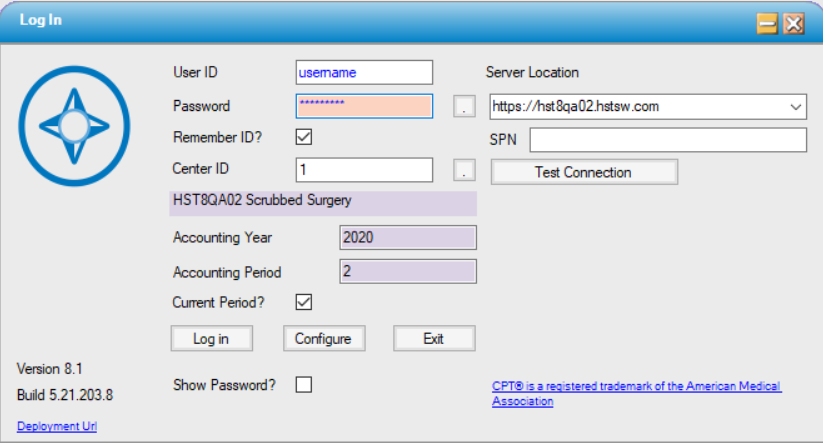
- Click
 to open the User Configuration form (shown below).
 -
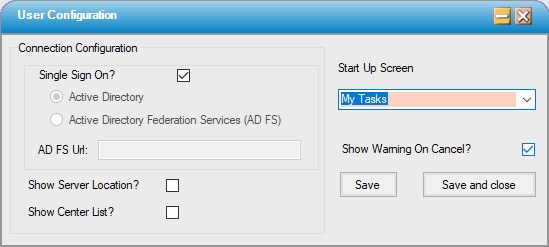
- Check Single Sign On? and un-check Show Log In every time
- Click

- Close application and re-launch.
- User windows ID is passed to the form is not editable. Click Log In.